This page will show you the basic functionality of Hornet Studio. It covers:
- where to find your projects & settings
- the structure of the UI
- how to navigate the 3D canvas

This page will show you the basic functionality of Hornet Studio. It covers:
You can also watch our introductory video to Hornet Studio!
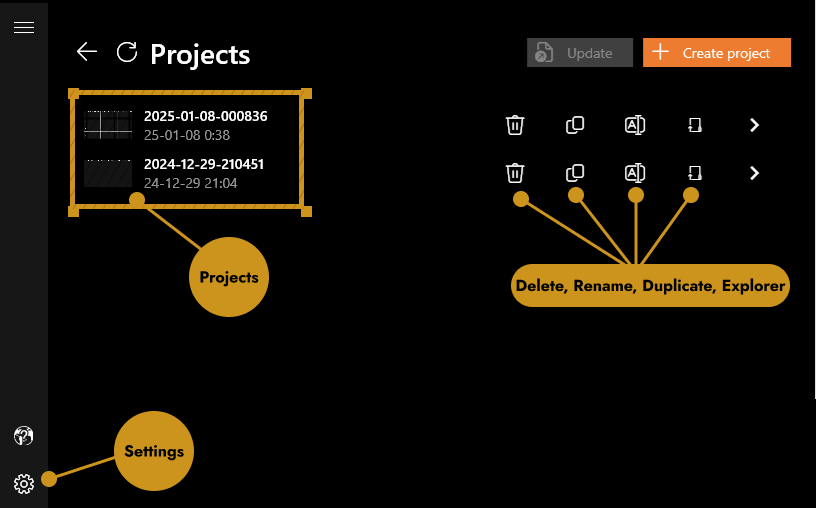
On startup, you can choose to
Double-click a project to open it.
 3D Scene
Every screen in Hornet Studio follows the above structure.
The available tools differ with the respective step you are on.


There are two tools thar are always available: the history and visibility tools.

Select the history-tool to view every taken action.
Every action is recorded in the History view. It is always accessible.
Subdivided by the steps in the workflow, you can go back to any previous point, simply by selecting the desired step.


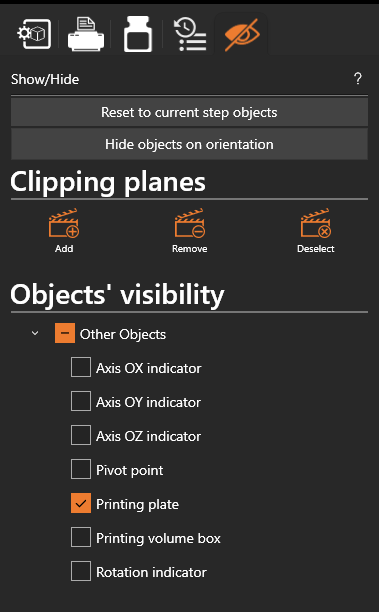
Select the visibility-tool to show/hide specific objects.
To remove clutter and improve legibility, using the visiblity tool, you can
Like the History view, this is always accessible.
The 3D view can be rotated and scaled (zoomed in and out) easily, by using the mouse or the toolbar at the bottom of the scene.
Zooming in and out
By scrolling your mouse or trackpad, the entire scene can be zoomed in and out of.


This can also be done by using the respective tool in the toolbar.
Rotating the scene
Hold the right-mouse button and drag it to rotate the scene.
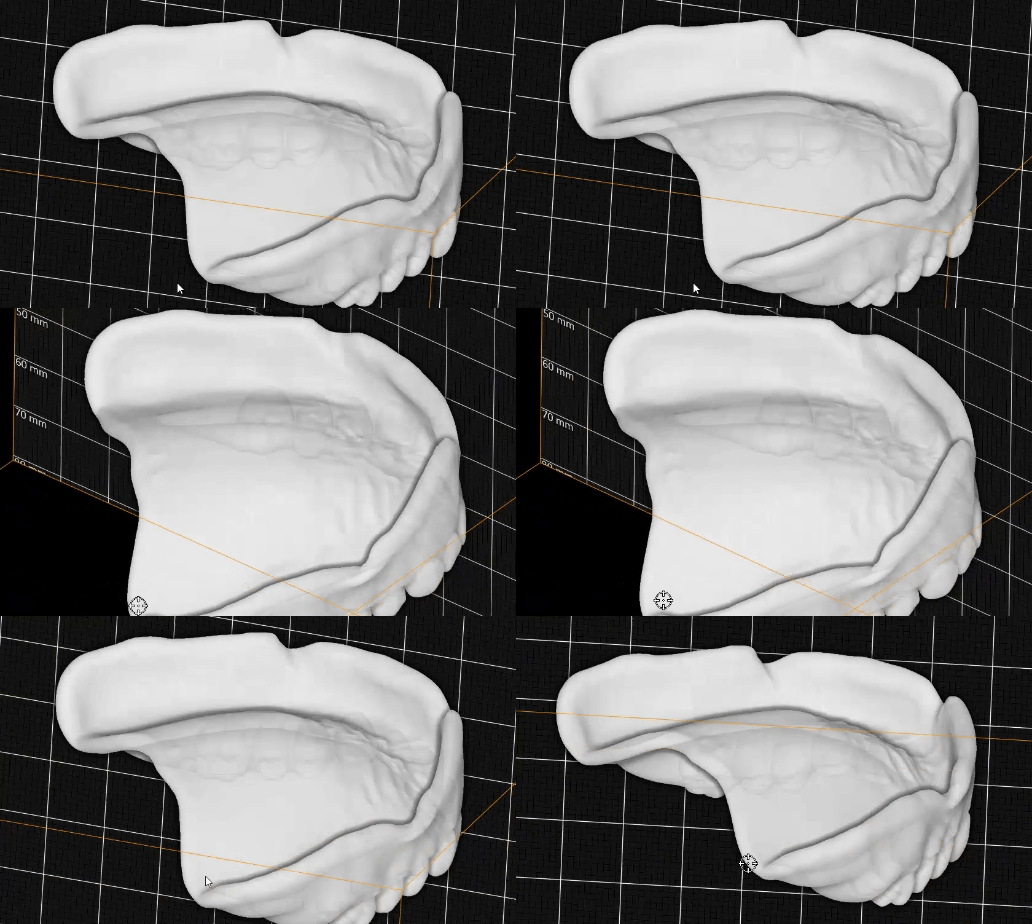

You can set where the rotation pivots around by setting a pivot point.
Selecting an empty space will reset the pivot point.
The pivot point might be hidden – check your visibility tool, if the pivot point cannot be seen!
Rotate to specific angles

To snap the camera to a specific angle, use the faces in the toolbar.
This allows you to quickly view the scene from above, below or any side.
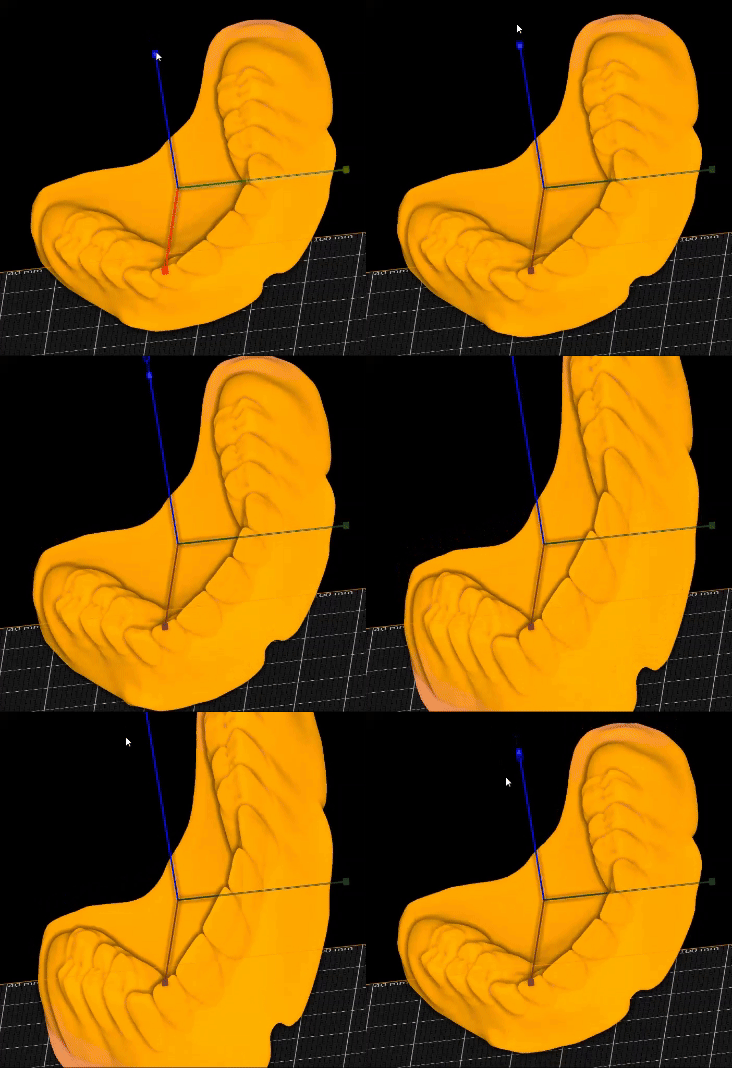
After you loaded your 3D objects into the scene, you might want to adjust its position, rotation and scale.
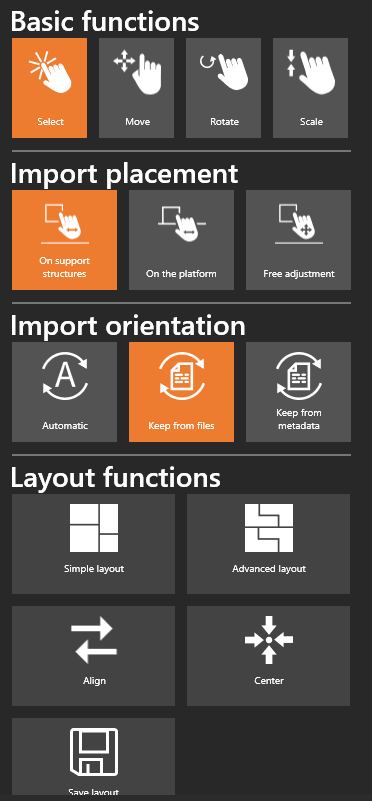
After selecting your object (selected objects are highlighted orange), using these tools, you can adjust it.
The basic functions allow you to move, rotate and scale the object.
Additionally, the orientation tools will help you to place the object exactly where you want it.
Use the layout functions to distribute multiple objects optimally.
Moving an object
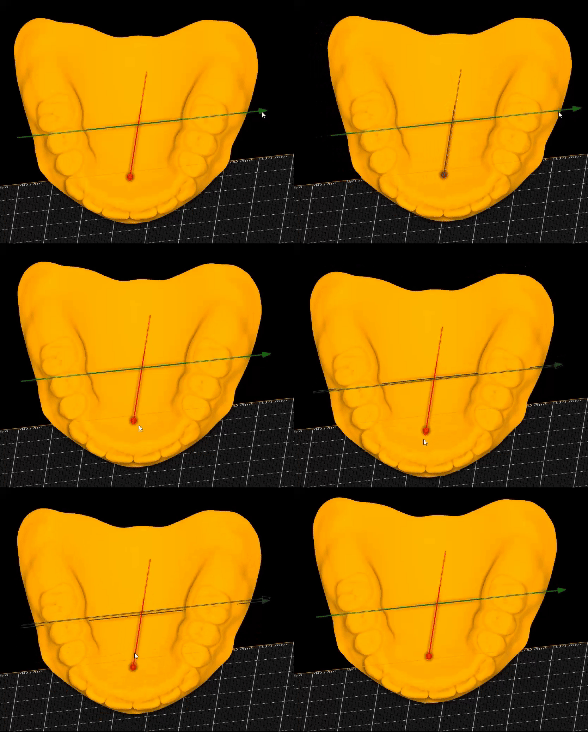
Select Move after selecting the object and drag the handles to move the object along the desired axis.
Rotating an object
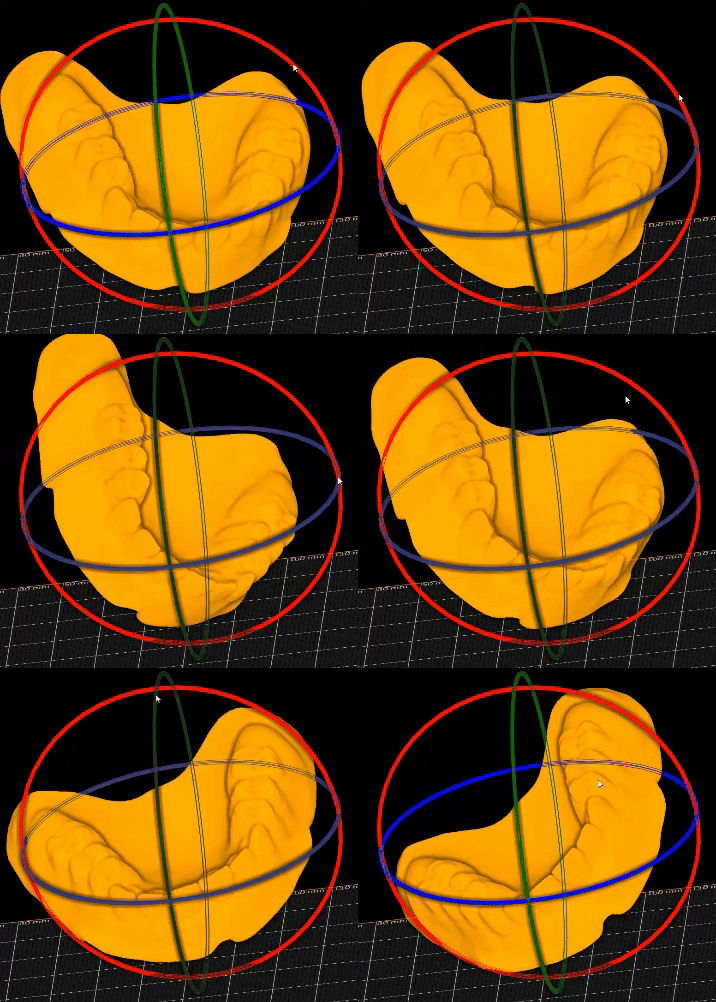
Select Rotate after selecting the object and drag the handles to rotate the object along the desired axis.
Scaling an object

Select Scale after selecting the object and drag the handles to scale the object along the desired axis.